
BlockGate
v1.0.0App and Website Blocker with Screen Time and Parental PIN (Android)
Installation
Everything needed to build BlockGate from source — toolchain, first run, rebranding it as your own, and a signed release on Google Play.
Thank you for purchasing BlockGate — app and website blocking with screen time, for Android. This section takes you from the source archive to a signed build on your own Google Play listing.
- Version: v1.0.0
- Language: Kotlin, with Jetpack Compose for the UI, Hilt for dependency injection and Room/SQLite for storage
- Platform: Android 7.1 and newer — Android only, since blocking is built on Android's Accessibility API
There is no server to install. BlockGate keeps everything on the device — no account, no backend, and no INTERNET permission at all. Nothing in this section involves hosting, a database server or a domain; the whole job is building the app and putting it on Google Play.
Toolchain
The Android Studio, JDK and SDK versions BlockGate builds against.
BlockGate is a standard Android Studio project, so a current Android Studio install is the only prerequisite. The versions below are what the project is developed and tested against.
| Tool | Version |
|---|---|
| Android Studio | Latest stable — it must support AGP 9.4 |
| JDK | 17 or newer to start Gradle — the build itself runs on JDK 25 |
| Gradle | 9.8 (wrapper included) · AGP 9.4.1 |
| Kotlin | 2.4.20 · KSP 2.3.12 · Hilt 2.60.1 |
| compileSdk / targetSdk | 37 |
| minSdk | 25 (Android 7.1) |
Confirm the Gradle wrapper runs before building:
./gradlew --versionThe JDK 25 toolchain
The build runs on a Java toolchain pinned in gradle/gradle-daemon-jvm.properties, and Gradle downloads it automatically on the first sync. The JDK bundled with Android Studio is enough to start that sync, so there is nothing to install by hand.
On Windows, rungradlew.batin Command Prompt, or.\gradlewin PowerShell, wherever these pages say./gradlew.
Generated code builds itself. Room and Hilt generate their code with KSP during every build, so there is no code generator to re-run by hand after an edit.
First Run
Opening the project, turning on blocking, and the commands that must stay clean.
Open the project folder in Android Studio with File → Open, let Gradle sync, then press Run with a phone connected.
The app opens on Home with a Blocking is off card at the top. Nothing is blocked until the accessibility service is on, so turn it on first:
- Tap Turn on on the card, then Open settings on the disclosure that follows.
- In the phone's Accessibility settings, open BlockGate under Installed apps (or Downloaded apps) and turn on the switch.
- Back in the app, go to the Apps tab, tap + and pick an app — or block
youtube.comon the Websites tab.
Opening that app or website now shows the block page. The Manual covers every screen from the user's side.
Android 13+ may say "Restricted setting". Android can hold back accessibility for apps installed outside the Play Store. Open Settings → Apps → BlockGate → ⋮ → Allow restricted settings, then turn the service on again. Play Store installs are not affected.
Tests and lint
All three should stay clean as you make changes:
./gradlew testDebugUnitTest
./gradlew connectedAndroidTest
./gradlew lintDebug
testDebugUnitTest runs 95 JVM unit tests with no device. connectedAndroidTest runs 16 database and parent PIN tests on a connected phone or emulator. lintDebug is Android Lint.
Turn off uninstall protection before connectedAndroidTest. The test run uninstalls the app when it finishes, and with protection on that uninstall is refused.After changing the database
The Room schema is defined by the entities in data/db/entity/, and the database file is blocklist.db.
The database is version 1 — the shipped schema, created whole on first launch. Once you have published, a schema change means raisingversionindata/db/AppDatabase.ktand adding a matching RoomMigrationto the builder indi/DatabaseModule.ktwith.addMigrations(…). Without it Room cannot open the old database, and the app fails for every existing user on update. Database Migrations walks through a complete, working example.
Rebranding
The five changes required before you can publish, and three optional ones.
Eight steps, to do in order, before your first upload to Google Play. The first five are required — without them the app still carries the BlockGate branding, and Google Play refuses steps 2, 4 and 5 outright. The last three are yours to choose.
| # | Step | Required? | If you skip it |
|---|---|---|---|
| 1 | Launcher icon | Must | Your app ships with the placeholder "no entry" icon |
| 2 | Package id | Must | Play rejects the upload — the id is already taken |
| 3 | App name | Must | The app calls itself "BlockGate" everywhere |
| 4 | Privacy policy link | Must | Play rejects the listing — accessibility apps must have one |
| 5 | Signing key | Must | Play rejects the upload — it accepts no unsigned or debug-signed build |
| 6 | Colours | Optional | Users keep the built-in palette |
| 7 | Version, tagline and suggestions | Optional | The About row reads "Block distractions, take back your time · v1.0.0" |
| 8 | Project name | Optional | Only Android Studio shows "BlockGate" |
Nothing else carries the demo branding. Everything a user can see comes from three places —
app_nameinres/values/strings.xml,AppConfig.kt, and the launcher icon — so once steps 1, 3 and 4 are done there is no stray name left to hunt for.
There are no class, theme or database names to rename. The code uses neutral names —
MainApplication,MainActivity,BlockingAccessibilityService,UninstallProtectionReceiver,AppTheme, the databaseblocklist.dband the settings fileapp_settings— that work unchanged under any app name. Keep them that way after your first release: renaming the database, the settings file or either of those two classes makes existing users lose their blocklist, their settings, their enabled service or their uninstall protection.
In the steps below, AppConfig.kt and the other Kotlin files are in app/src/main/java/<your package folders>/ — app/src/main/java/com/shahinlabs/blockgate/ before step 2.
Step 1 — Launcher icon
Use Android Studio's built-in Image Asset tool. It writes every icon size for you, so no icon file is edited by hand. You need your logo as a square PNG, at least 512×512, ideally on a transparent background.
In the Project panel (Android view), right-click
app → resand choose New → Image Asset.Icon type — Launcher Icons (Adaptive and Legacy). Keep the name
ic_launcher.Foreground Layer — set Asset type to Image and choose your PNG. Turn on Show safe zone and drag Resize until the logo sits fully inside the circle; anything outside it can be cut off on some phones.
Background Layer — a solid Color (its hex code) or a background Image.
Monochrome — optional; the shape Android 13+ uses for themed icons.
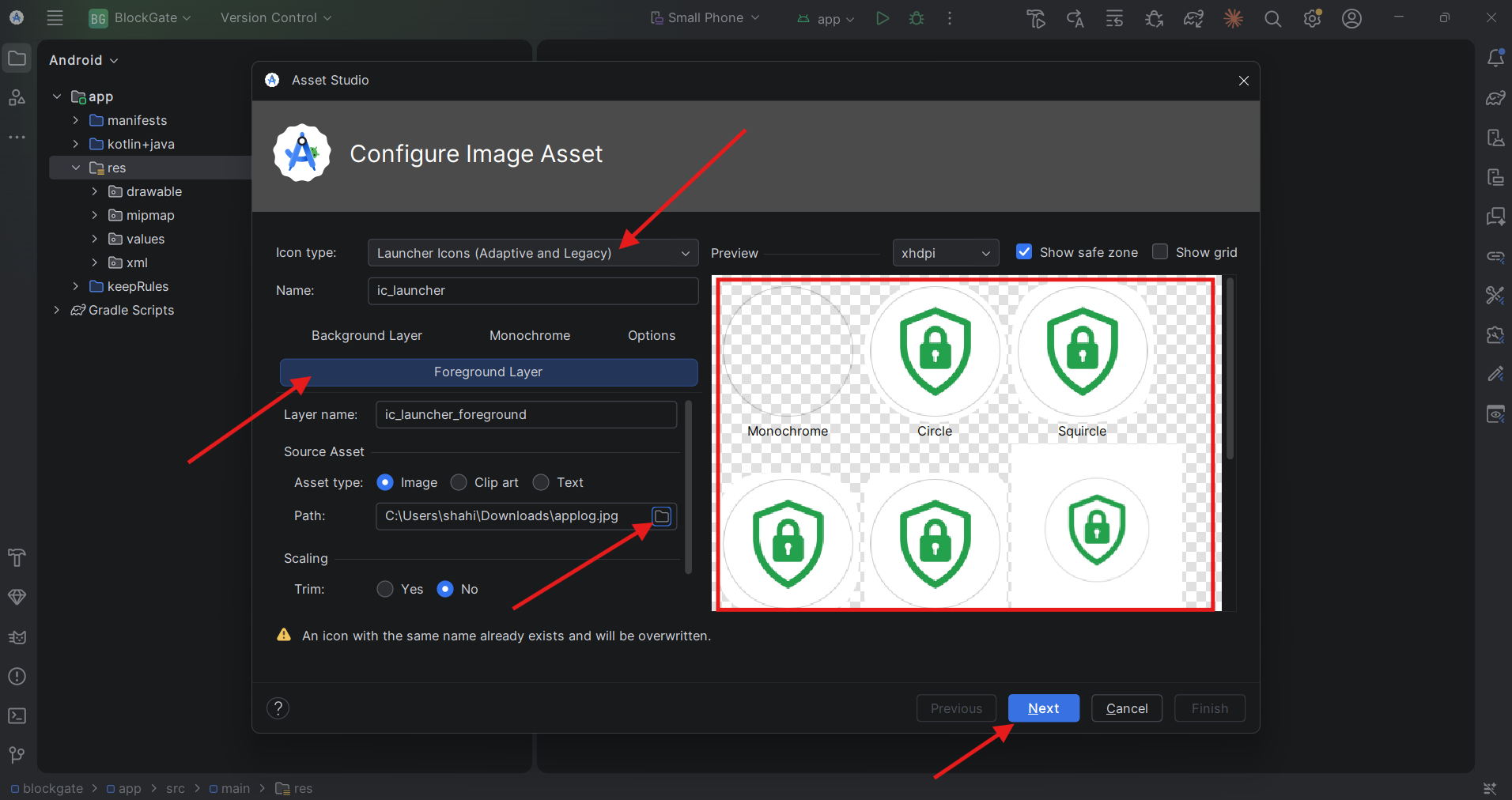
Click Next, then Finish. The warning that "An icon with the same name already exists and will be overwritten" is expected — you are replacing the placeholder.
Uninstall the app before checking the new icon. Android caches launcher icons, so running over the old install can keep showing the previous logo and nothing reports an error.
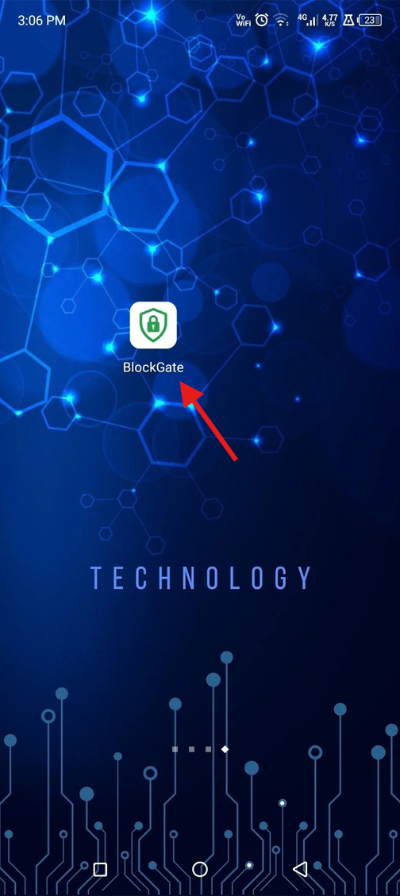
Done right: after uninstalling and running again, the phone shows your new icon (arrow) and your app name under it.
Two small icons are not made by Image Asset.
res/drawable/ic_launcher_monochrome.xmlis the themed-icon glyph, andres/drawable/ic_notification.xmlis the status-bar icon shown when an unblock window opens. Replace each with a white-on-transparent vector of your logo (New → Vector Asset), or keep the neutral ones. If your logo fills the whole square, replace the XML rather than using the Monochrome tab — themed icons keep only the shape, so a full-square logo turns into a blank square.
Tip: the tool also writes
app/src/main/ic_launcher-playstore.png, a 512×512 icon to upload in Play Console as the store listing icon. If a build ever fails with Duplicate resources foric_launcher, the same name exists in two places — an oldic_launcher.webpnext to a new.png, say. Delete the old one.
Step 2 — Package id
Currently com.shahinlabs.blockgate. It identifies your app on Google Play and must be unique, so use a name you own — lowercase letters, digits and underscores, each part starting with a letter. Android Studio renames it for you, folders and every package and import line included. Rename the two parts one at a time:
Show the parts as folders — in the Project panel, ⋮ → Appearance and untick Compact Middle Packages, so
com,shahinlabsandblockgateappear separately.Project panel → ⋮ → Appearance → untick Compact Middle Packages.
Rename
shahinlabs— right-click it, Refactor → Rename (Shift+F6), choose All Directories so the tests move too, type your company name, tick Search in comments and strings and Search for text occurrences, then Refactor — and Do Refactor if a preview opens.Rename
blockgate— the same again, with your app name.
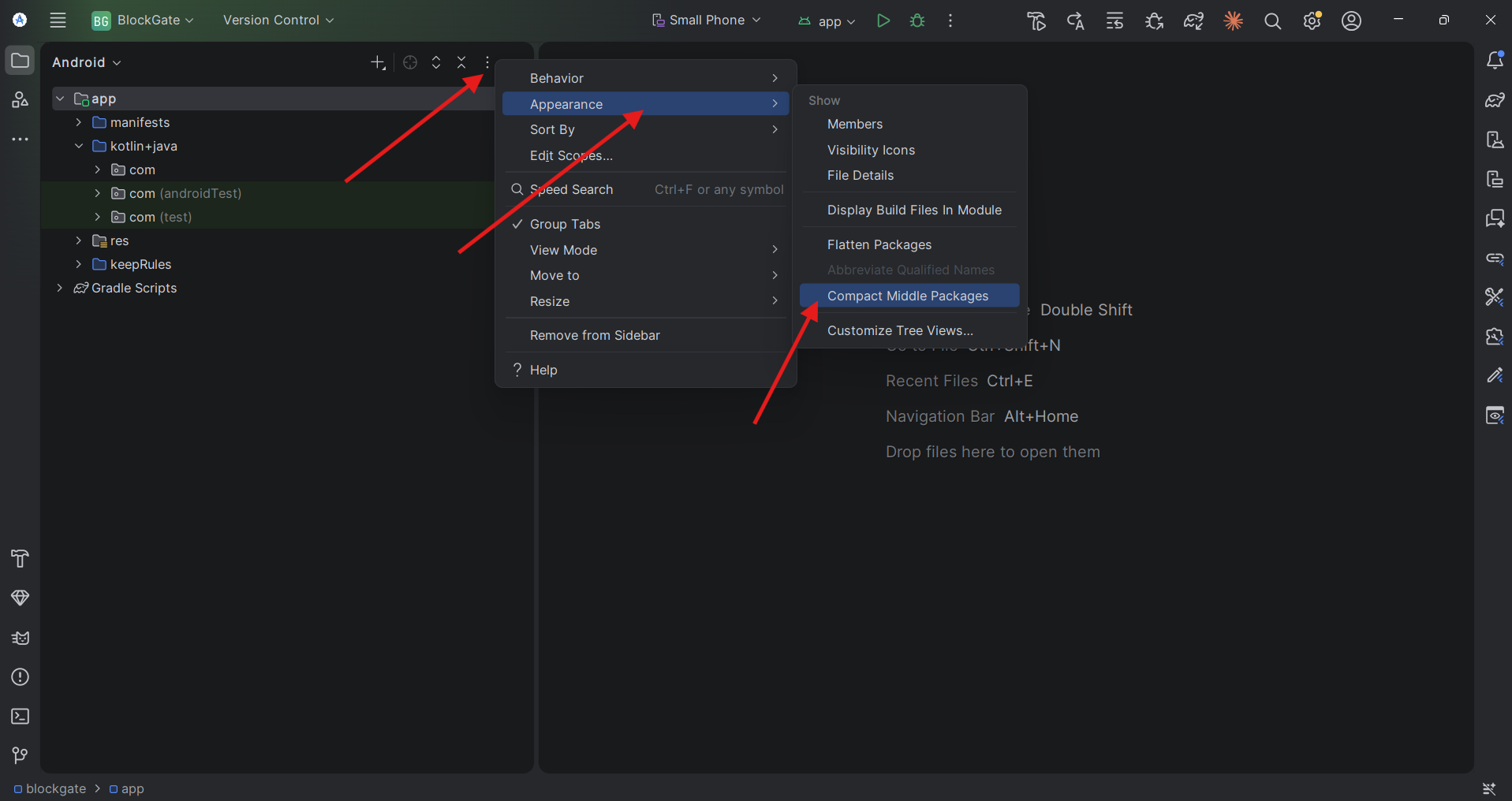
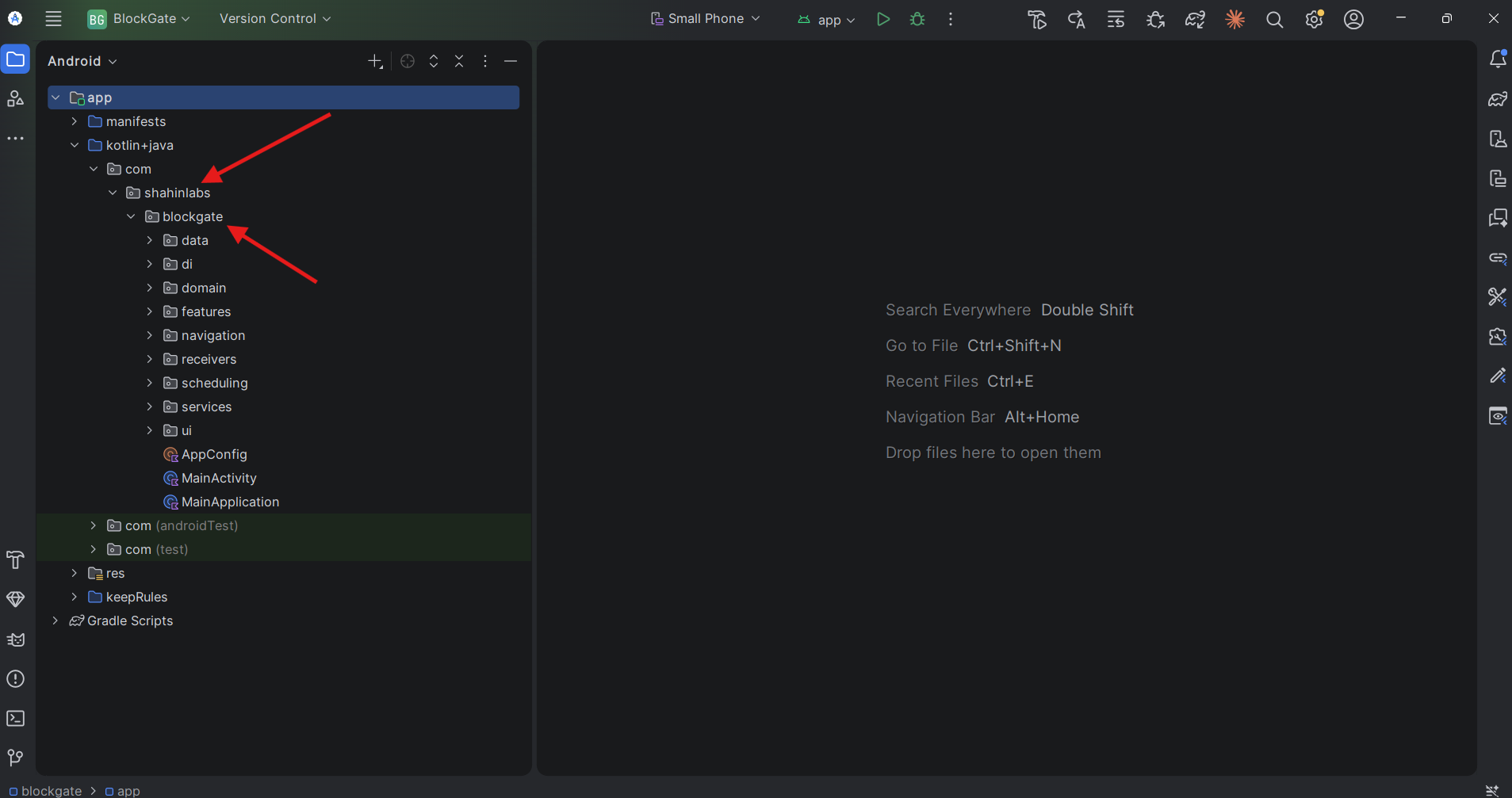
Before: the two folders to rename — shahinlabs becomes your company name, blockgate your app name.
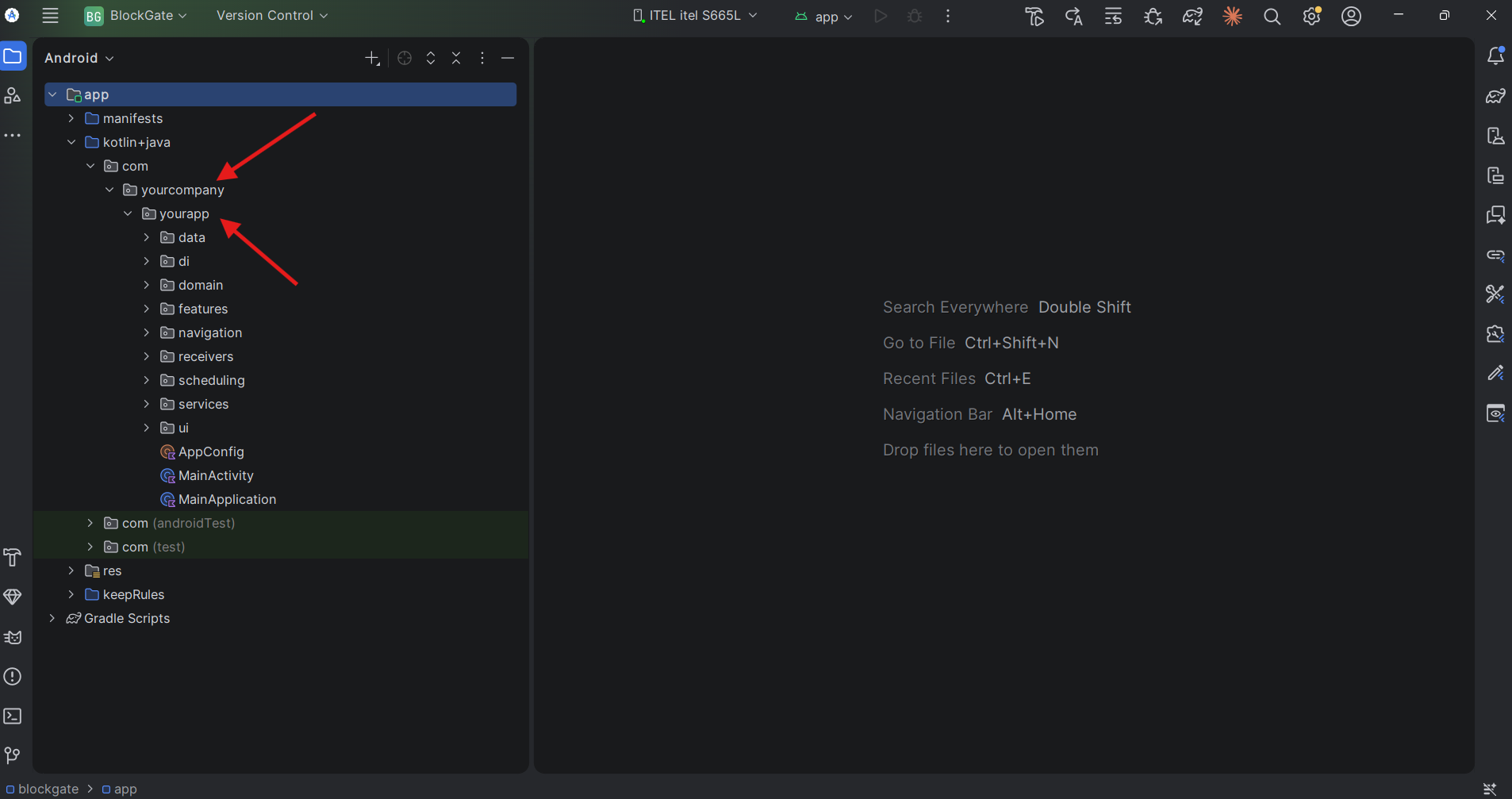
Done right: the Project panel shows com → yourcompany → yourapp under kotlin+java, and the androidTest and test folders show the same names.
Then check that it landed. Both lines in app/build.gradle.kts must show the new id, and must be equal:
android {
    namespace = "com.yourcompany.yourapp"
    defaultConfig {
        applicationId = "com.yourcompany.yourapp"
    }
}
The rename does not always reach
res/xml/accessibility_service_config.xml. Itsandroid:settingsActivitymust read your new id followed by.MainActivity. Left on the old id, the Settings button on your app's page in the phone's accessibility settings stops opening the app — and nothing reports an error.
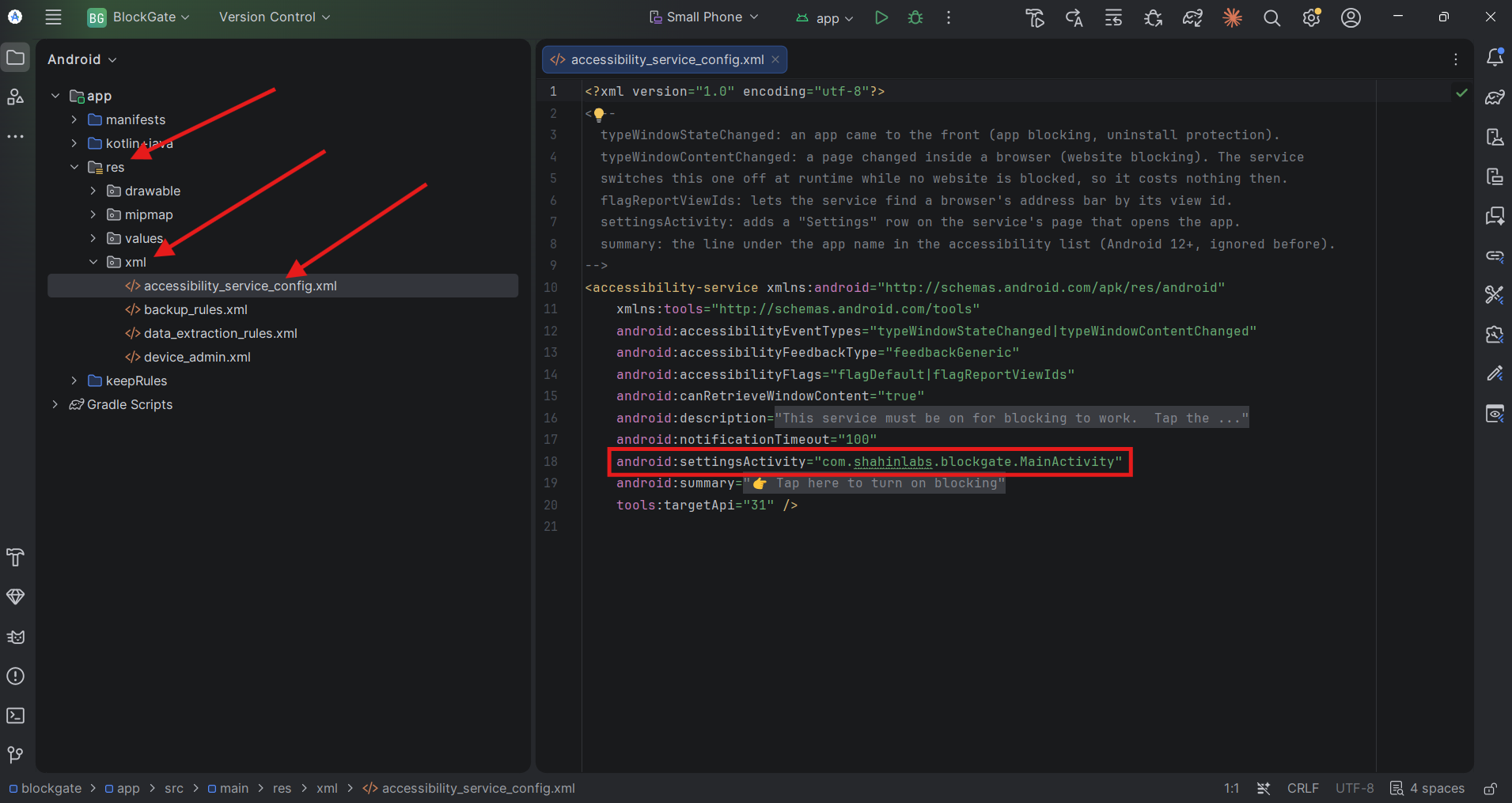
Before: open res/xml/accessibility_service_config.xml — the boxed line still holds the old id, com.shahinlabs.blockgate.
After the change it must read your new id followed by .MainActivity:
android:settingsActivity="com.yourcompany.yourapp.MainActivity"Finally, Find in Files (Ctrl+Shift+F) for shahinlabs should find nothing outside the README. A search for blockgate should find only app_name (step 3) and rootProject.name (step 8). Then File → Sync Project with Gradle Files and Build → Clean Project.
Uninstall the old app before running the renamed one. It has the old id, so it would stay installed next to the new one. If uninstall protection is on, switch it off in the old app first.
Step 3 — App name
The package rename does not change the name users see. That is one string, in app/src/main/res/values/strings.xml:
<string name="app_name">Your App</string>It is the launcher label, the accessibility service's name in system settings, and every mention inside the app — the disclosure dialog, the banners, uninstall protection and the About row. Spaces and capitals are fine.
The texts Android shows on its own settings pages leave the name out on purpose. The
accessibility_service_*anddevice_admin_*strings need no change.
Step 4 — Privacy policy link
Google Play requires a privacy policy for every app that uses the Accessibility API. It must name your app and you, give a contact email, and say what the app does with data. For BlockGate that is:
The accessibility service is used only to see which app is on screen, to show the block page for apps on the blocklist.
While websites are blocked, it reads the address bar of supported browsers. Addresses are checked in memory and never stored, logged or shared.
With uninstall protection on, it reads the uninstall screens and the app's own page in Accessibility settings, to stop the app being removed or its service turned off.
Usage access is used only to show the user their own screen time.
The blocklist, unblock windows and settings stay on the device. There is no internet access, no account, no ads and no analytics.
Host it on a public page, then paste the URL into AppConfig.kt:
const val PRIVACY_POLICY_URL = "https://yoursite.com/privacy"A Privacy Policy row then appears in Settings → About and opens that page in the browser. Paste the same URL in Play Console under Policy and programs → App content → Privacy policy.
Tip: while the constant is left empty the row is hidden, so the app never shows a link that goes nowhere. Include the
https://— without it the row opens nothing.
Step 5 — Signing key
Play only accepts builds signed with your own key. Creating it and building the signed bundle are covered step by step in Release Builds.
Step 6 — Colours
| File | What it holds |
|---|---|
ui/theme/AppAccent.kt | The accent colours users pick in Settings, each with a light and a dark tone. The first entry is the default. Add a matching accent_* string and a line in accentLabel (SettingsScreen.kt) for any new one |
ui/theme/Theme.kt | AppPalette — page, card, border, text, danger and success colours for light and dark |
ui/theme/Dimens.kt | Spacing, card padding, icon sizes and maximum page width for small phones, phones and tablets |
ui/theme/Type.kt | Text styles, and the slight scale-down on small phones |
res/values/colors.xml and res/values-night/colors.xml | page_background, the window colour while the app starts — keep it equal to pageBackground in Theme.kt |
Step 7 — Version, tagline and suggested websites
Version —
versionCodeandversionNameinapp/build.gradle.kts. The About row reads it automatically.Tagline —
APP_TAGLINEinAppConfig.kt, shown on the About row.Suggested websites —
SUGGESTED_WEBSITESinAppConfig.kt, the one-tap chips in the Block a website dialog. Bare domains only, withoutwww.orhttps://.
const val APP_TAGLINE = "Block distractions, take back your time"Raise
versionCodeby one for every upload. Play refuses a bundle whoseversionCodeit has already seen;versionNameis only the label users read.
Step 8 — Project name
Users never see it. rootProject.name = "BlockGate" in settings.gradle.kts is the name in Android Studio's title bar — edit it and sync. To rename the folder itself, close Android Studio, rename it on disk, and reopen it with File → Open.
Before your first upload
The new launcher icon shows on the phone after uninstalling and reinstalling.
namespace,applicationIdandsettingsActivityshow your id, and a search forshahinlabsfinds nothing outside the README.The Settings button on your app's page in the phone's accessibility settings opens the app.
The launcher, the accessibility settings page and Settings → About show your app name.
Settings → About → Privacy Policy opens your page, and the same URL is in Play Console.
./gradlew testDebugUnitTestpasses, and a signed release bundle builds.
Release Builds
Signing, building the bundle for Google Play, and code shrinking with R8.
Once the rebranding steps are done, the app is ready to sign and build. Everything here works on Windows, macOS and Linux.
Step 1 — Create your signing key
Done once, and kept forever. In Android Studio choose Build → Generate Signed App Bundle / APK, pick Android App Bundle, then Create new… under the key store path. Save the keystore outside the project folder, set its passwords and fill in your name.
Back up the keystore file and its passwords. Every future update must be signed with the same key, and a lost key can't be recovered. Never put the keystore in a project zip you share or in a public repository.
Step 2 — Build the bundle
Continue in the same wizard: choose the release build variant and finish.
| Output | Path |
|---|---|
| Bundle | app/release/app-release.aab |
The bundle is what you upload to Google Play; Play builds a per-device APK from it.
Building for testers outside Play? Pick APK instead of Android App Bundle in the same wizard. A bundle cannot be installed on a phone directly.
Step 3 — Code shrinking with R8
Release builds are shrunk and obfuscated by R8, already switched on in app/build.gradle.kts:
buildTypes {
    release {
        optimization {
            enable = true   // false turns R8 off
        }
    }
}
R8 removes unused code and renames classes to short names, so a decompiled APK shows scrambled code, and the app is about 10× smaller — roughly 2 MB instead of 20 MB. It only touches the release build; the debug build behind the Run button stays readable.
No keep rules are needed. Classes Android looks up by name — the activities, the accessibility service, the receivers, Hilt and Room — keep their names automatically. If a library you add later breaks only in release, add rules to app/src/main/keepRules/rules.keep.Keepmapping.txtfor each release. R8 writesapp/build/outputs/mapping/release/mapping.txt, which turns the scrambled names in a crash report back into real ones. The.aabcarries it to Play automatically, but your next build overwrites the local copy.
Releasing an update
- Raise
versionCode(andversionName) inapp/build.gradle.kts. - If you changed an entity in
data/db/entity/, add a Room migration — see Database Migrations. - If you changed
res/xml/accessibility_service_config.xml, users must turn the service off and on once — Android reloads it only then. Say so in the release notes. - Sign with the same keystore as the first release.
Google Play Review
The extra declarations Play asks of an app that uses accessibility, usage access and device admin.
Apps that use the Accessibility API, usage access and device admin get extra review on Google Play. Everything the app itself must do is built in; the rest is filled in once in Play Console.
| Requirement | Status |
|---|---|
| Prominent disclosure before sending the user to accessibility settings | Built in — ServiceDisclosureDialog, on every Turn on path |
| No data leaves the device | Built in — no INTERNET permission, and the app's data is excluded from Google Drive backup |
| No restricted alarm permission | Built in — only the user-grantable SCHEDULE_EXACT_ALARM. USE_EXACT_ALARM, which Play allows only for clock and calendar apps, is not requested |
| Privacy policy | Yours — Rebranding step 4, in AppConfig.kt and in Play Console |
| Signed release build | Yours — Release Builds |
| Accessibility declaration | Yours — App content → Accessibility API |
| Usage access declaration | Yours — App content → Sensitive permissions |
The accessibility declaration
Describe the feature in Play Console — for example, "Blocks apps and websites the user has chosen to block, and optionally stops the app being uninstalled or its service being turned off." — and upload a short screen recording that shows the disclosure dialog and a block page opening over a blocked app.
The usage access declaration
Explain it as "Shows the user their own screen time." Usage access only feeds the chart on Home and the monthly stats; blocking never depends on it.
Never skip the disclosure. Play requires it to appear before the user is sent to accessibility settings. Every Turn on button in the app goes through it; keep it that way if you add a new one.
Phone-to-phone transfer still works. Only Google Drive backup is excluded, inres/xml/backup_rules.xmlanddata_extraction_rules.xml. On Android 12+, moving to a new phone by cable or Wi-Fi still carries the blocklist over.
Modifying the Source
How the project is laid out, how blocking works, and the six constraints that are not obvious from reading the code.
Read this section in detail in your Documentation PDF, included in your download package.
Architecture
How the screens, ViewModels, Room database, accessibility service and block page connect — and where it is safe to change things.
Read this section in detail in your Documentation PDF, included in your download package.
Database Migrations
A complete, working Room migration — adding a column without losing anyone's blocklist.
Read this section in detail in your Documentation PDF, included in your download package.
Manual
How to use BlockGate day to day — every screen in the app, in the order you will meet them.
This section explains how to use BlockGate once it is installed. The app has five tabs along the bottom — Home, Apps, Websites, Schedule and Settings — and the pages below follow the order you will actually meet them in: turn blocking on, block what distracts you, let some of it through at set times, read your screen time, then lock it all down.
Everything stays on the device. There is no account, no sign-in and no internet access. Your blocklist, unblock windows and screen-time history live in a database on the phone itself, and are left out of Google Drive backup.
The five tabs
- Home — blocked counts, today's screen time, and the way into monthly stats.
- Apps — the apps you have blocked.
- Websites — the websites you have blocked.
- Schedule — unblock windows that let blocked apps and websites through at set times.
- Settings — permissions, parent PIN, uninstall protection, appearance and help.
Adding a block is instant; removing one is deliberate. Blocking takes a single tap. Anything that lets a blocked app or website back through asks you to type a code first — or the parent PIN, once one is set.
Turning On Blocking
The one switch blocking depends on, and the other permissions the app asks for.
Blocking runs through an Android accessibility service, and nothing is blocked until you turn it on. While it is off, a Blocking is off card sits at the top of the Home, Apps and Websites tabs.
Turning it on
Six steps, about a minute. The phone's own screens look a little different between makers; the words to look for stay the same.
1. Tap Turn on
On Home, the Blocking is off card has a Turn on button.
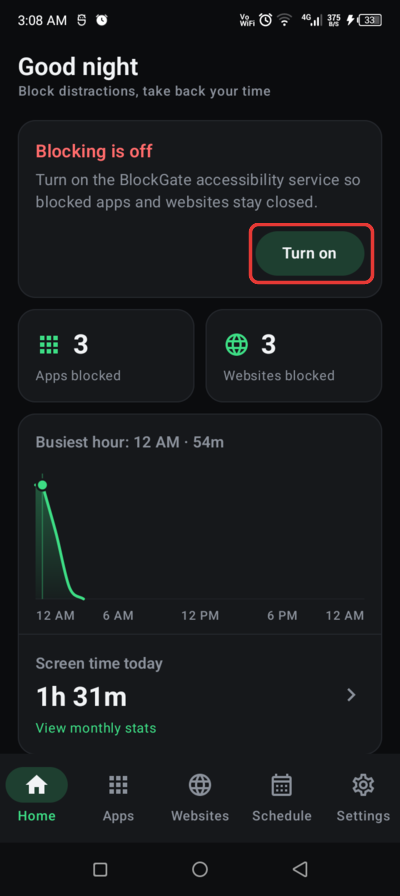
The card shows on Home, Apps and Websites until the service is on.
2. Read the disclosure
BlockGate explains what the service is used for before anything is turned on. Tap Open settings to agree, or Cancel to leave blocking off.
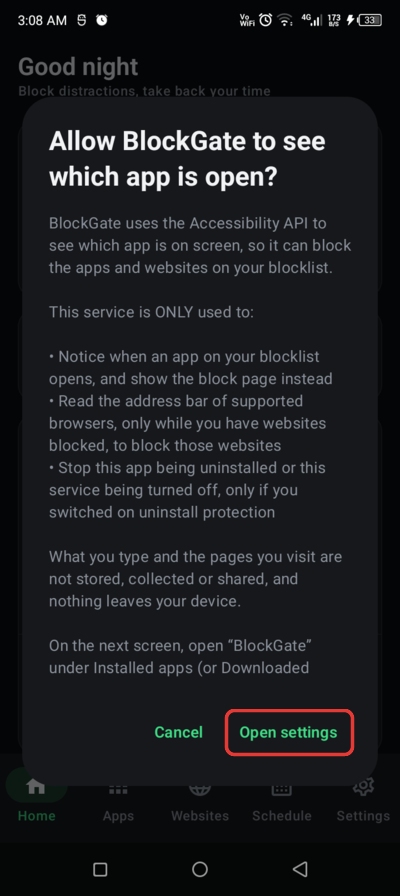
The disclosure Google Play requires. Tap Open settings (boxed).
3. Open BlockGate in Accessibility
The phone's Accessibility settings open. Under Downloaded apps (or Installed apps), tap BlockGate — it reads Off / 👉 Tap here to turn on blocking.
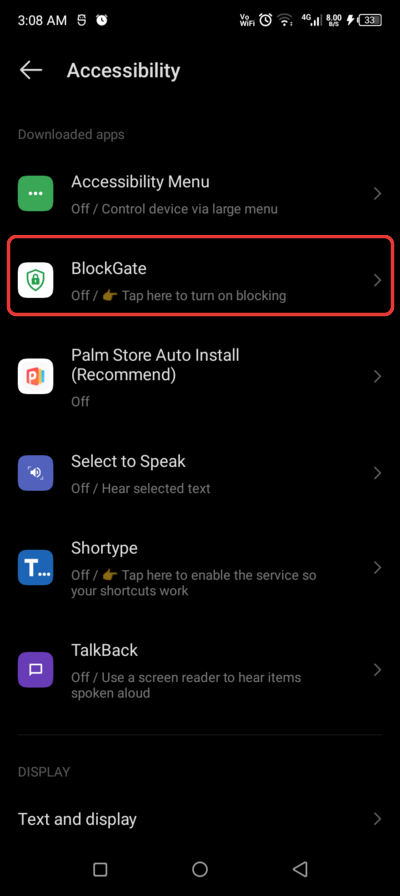
BlockGate in the list of downloaded accessibility apps.
4. Turn on the switch
Tap the Use BlockGate switch at the top.
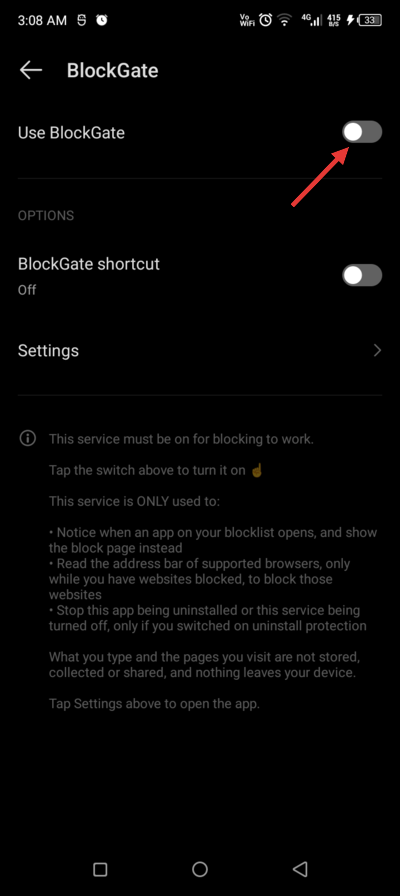
Tap the switch (arrow).
5. Allow
Android asks Allow BlockGate to have full control of your device? — its standard question for every accessibility service. Tap Allow. BlockGate uses this only for the three things listed below.
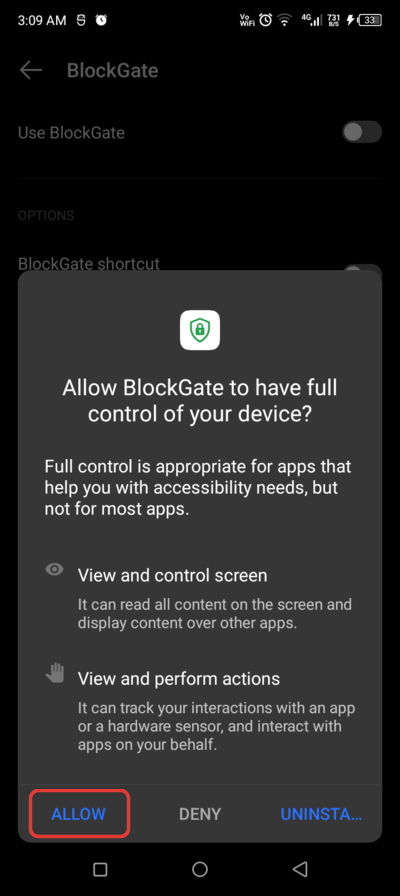
Android's confirmation. Tap Allow (boxed).
6. Check that it is on
Go back to BlockGate. The Blocking is off card is gone, and Settings → Permissions → Accessibility reads Granted.
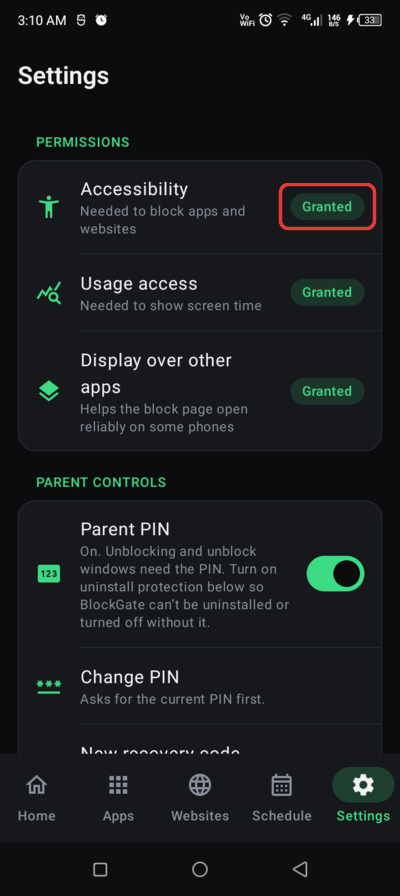
Done right: Accessibility reads Granted (boxed).
What the service is used for
Only three things, and the disclosure lists them before you agree:
- Noticing when an app on your blocklist opens, and showing the block page instead.
- Reading the address bar of supported browsers — only while you have websites blocked — to block those websites.
- Stopping the app being uninstalled or the service being turned off — only if you switched on uninstall protection.
What you type and the pages you visit are not stored, collected or shared, and nothing leaves the phone.
Android 13+ may say "Restricted setting". For apps installed from outside the Play Store, Android holds back accessibility until you allow it. Settings → Help → Can’t turn on the service? walks you through it: open App info, tap ⋮, choose Allow restricted settings, then turn the service on again.
Force-stopping the app turns the service off. Android does this itself — from App info, or through some cleaner apps — and no app can prevent it. The Blocking is off card comes back; turn the service on again.
The other permissions
- Usage access — screen time on Home and in monthly stats. Blocking works without it.
- Display over other apps — helps the block page open reliably on some phones.
- Notifications — asked once on first launch (Android 13+), for the notice when an unblock window opens.
Accessibility, Usage access and Display over other apps all appear in Settings → Permissions with a Granted or Grant pill; tap a row to open the system page that changes it.
Blocking Apps
Picking apps to block from everything on the phone, and unblocking one.
The Apps tab lists every app you have blocked. Opening any of them shows the block page instead.
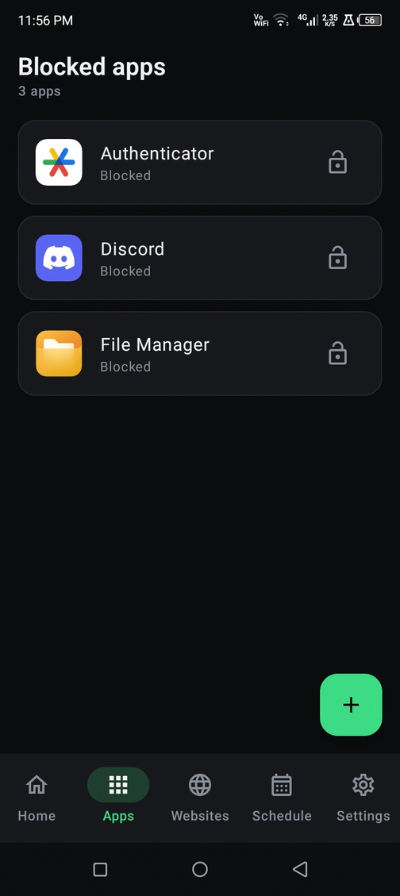
Blocking an app
Tap + to open Choose apps to block: every app on the phone with a launcher icon, including pre-installed ones such as Chrome and YouTube, in alphabetical order. Search by name at the top.
Tap an app to block it. There is no confirmation — it is blocked the moment you tap, and stays in the list marked Blocked, so you can block several in a row. Back returns to the tab.
Two apps are never offered — the phone's home screen and BlockGate itself. Blocking either would leave the block page's Close button nowhere to go.
Unblocking an app
Tap the open-lock icon on the app's row, on the tab or in the picker. Unblock app? asks you to type a code before it lets the app go — see Typed Codes.
Want an app through only some of the time? Leave it blocked and add an unblock window on the Schedule tab — a lunch break, an hour in the evening — instead of unblocking and reblocking it by hand.
Blocking Websites
Blocking a site and its subdomains, the browsers it works in, and what happens on a blocked page.
The Websites tab lists the websites you have blocked. A blocked website is caught in every supported browser, along with all of its subdomains.
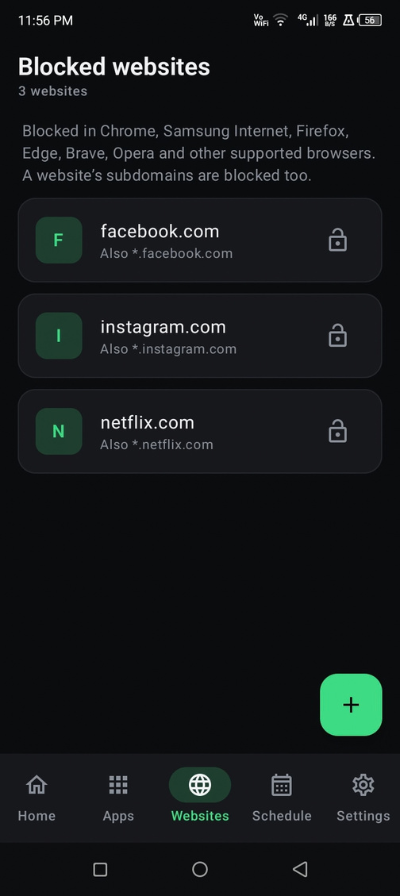
Blocking a website
Tap + to open Block a website. Type an address and tap Block, or tap one of the Popular suggestions to block it in one go. Suggestions you have already blocked are hidden.
Type the address however you like — https://www.YouTube.com/watch?v=1 is stored as youtube.com. Two messages can appear under the field:
- Enter a web address, like example.com — what you typed is not an address.
- This website is already blocked — it is on the list already.
Subdomains
Each row reads Also *.youtube.com: blocking youtube.com also blocks www.youtube.com and m.youtube.com, but not a different site such as notyoutube.com.
Supported browsers
Blocked websites are caught in Google Chrome (including links opened from other apps), Samsung Internet, Firefox and Firefox Focus, Microsoft Edge, Brave, Opera and Opera Mini, DuckDuckGo, Vivaldi, Kiwi, Ecosia, Yandex and Mi Browser. The same list is under Settings → Help → Supported browsers.
Other browsers are not covered. A blocked website opened in a browser that is not on the list loads normally. To close that gap, block the browser itself on the Apps tab.
What happens on a blocked page
The browser is stepped back off the page, then the block page opens over it — so reopening the browser does not land you straight back on the blocked site.
The address bar is read only while you have websites blocked. With the list empty, browsers are not looked at at all. Addresses are checked in memory and never stored, and nothing is checked while you are still typing in the bar.
Unblocking a website
Tap the open-lock icon on its row. Unblock website? asks for the code, exactly like unblocking an app.
The Block Page
What opens over a blocked app or website, and why it has no unlock button.
Opening a blocked app or website brings up the block page, full screen, in the same theme and accent colour as the app. It names what was blocked:
- App blocked — with the app's name.
- Website blocked — with the domain.
- Uninstall blocked and Accessibility settings blocked — shown by uninstall protection.
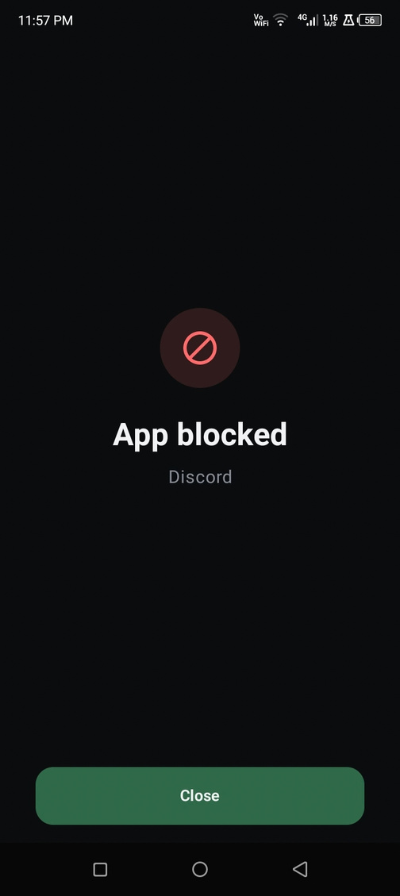
Close
The Close button fills up from one edge over 3 seconds and only then turns on. Close — or Back, once it is ready — takes you to the home screen.
There is no code or PIN on the block page. Blocks only come off inside the app, where the code or PIN is asked for. The block page is a dead end on purpose: it gives an impulse nothing to bargain with.
The wait cannot be skipped. Back does nothing during it, and turning off system animations does not shorten it.
Coming straight back blocks again. Reopening the app from the recent-apps screen, or tapping its icon again, brings the block page straight back.
Typed Codes
The random code every unblock asks for, and what does and does not need it.
Anything that lets a blocked app or website back through asks you to type a code first. The point is not secrecy — the code is right there on screen — but friction: twelve characters is long enough that unblocking becomes a decision rather than a reflex.
Typing the code
The dialog shows a random 12-character code in three groups of four — ABCD EFGH JKLM — with twelve boxes underneath. Letters go in as capitals, and characters that look alike, such as O and 0 or I and 1, never appear.
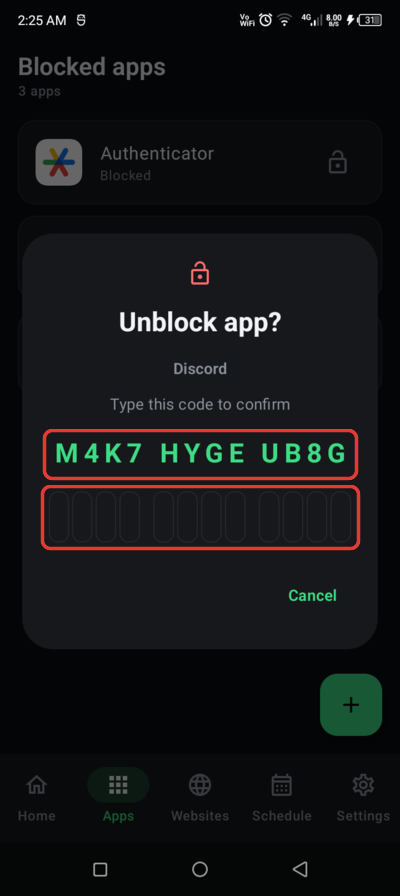
The typed-code dialog, here for unblocking an app: type the code (top box) into the twelve boxes underneath (bottom box).
There is no button to press: the moment the code matches, the action goes through. A full but wrong code turns the boxes red with That doesn’t match the code. Check the red boxes.
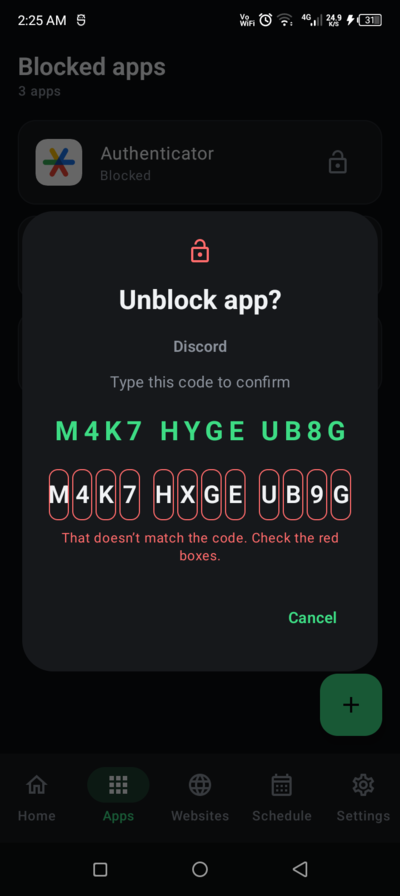
A full but wrong code: the boxes turn red and the message appears. Compare them with the code above, fix the characters that differ, and the action goes through.
What asks for it
- Unblocking an app.
- Unblocking a website.
- Saving an unblock window that is switched on, or switching one on from the list.
- Turning off uninstall protection.
What does not
Anything that makes blocking stricter goes straight through: blocking an app or website, switching a window off, deleting a window, and turning uninstall protection on.
Every dialog shows a new code. Cancelling and reopening gives a different one, so there is no code to memorise.
Once a parent PIN is set, the PIN replaces the code everywhere. The same actions ask for the 4-digit PIN instead, so only someone who knows it can let anything through.
Unblock Windows
Letting chosen apps and websites through at set times — weekly, or on one day.
Blocked apps and websites stay blocked around the clock. An unblock window on the Schedule tab lets chosen ones through for a while — a lunch break, an hour in the evening — and blocks them again the moment it ends.
Creating a window
Tap + to open New unblock window, a full page filled in from the top down:
Name — up to 40 characters, such as Lunch break.
Repeat — Weekly for chosen days of the week, or One day for a single date.
Days or Date — a weekly window starts with Monday to Friday picked; tap the day circles to change them. A one-day window takes today or any later date.
Start and End — 12:00 to 13:00 to begin with, in the phone's 12- or 24-hour style.
Let through — a switch for every blocked app and website. Turn on the ones this window should let through.
Enabled — on by default.
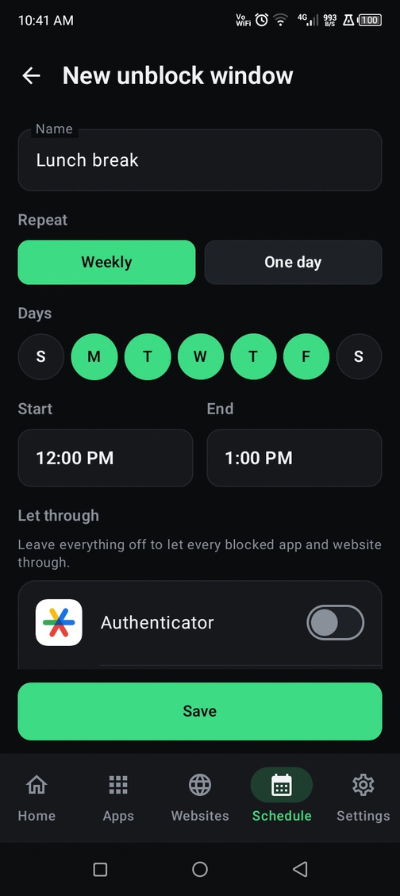
Leave every switch under Let through off to let everything through. An empty selection means the whole blocklist, and the window's card then reads Everything blocked.
Saving
Save stays pinned at the bottom, above the keyboard, and is greyed out until the window has a name. If it still cannot be saved, the reason shows just above it:
Pick at least one day — a weekly window with no days.
Start and end can’t be the same time
This time has already passed — a one-day window that would already be over.
Saving a window that is switched on asks for the code first, because it lets blocked apps and websites through. A window saved switched off does not.
Back asks before throwing away changes. Leaving the editor with unsaved edits shows Discard changes? — choose Keep editing to go back to it.
Windows past midnight
A window whose end is earlier than its start runs overnight: 22:00 to 06:00 opens at ten at night and closes at six the next morning. The days you pick are the days it starts.
The window list
Each card shows the name, the time range, and the days or date with what it lets through — Mon, Tue · 2 apps, 1 website. Tap a card to edit it.
Switch on — asks for the code, like saving.
Switch off — no code; it only makes blocking stricter.
Delete — no code, and Undo appears for a few seconds afterwards.
A window ends on time even if you stay in the app. When it closes, whatever is on screen is checked again, so an app it let through is blocked right then — not the next time you open it.
A notification says when a window opens. Unblock window open appears at its start time. Turn it off under Settings → Notifications; the window itself works either way.
Home and Screen Time
Blocked counts, today's screen time hour by hour, and today's top apps.
The Home tab opens with a greeting for the time of day and a summary of where things stand.
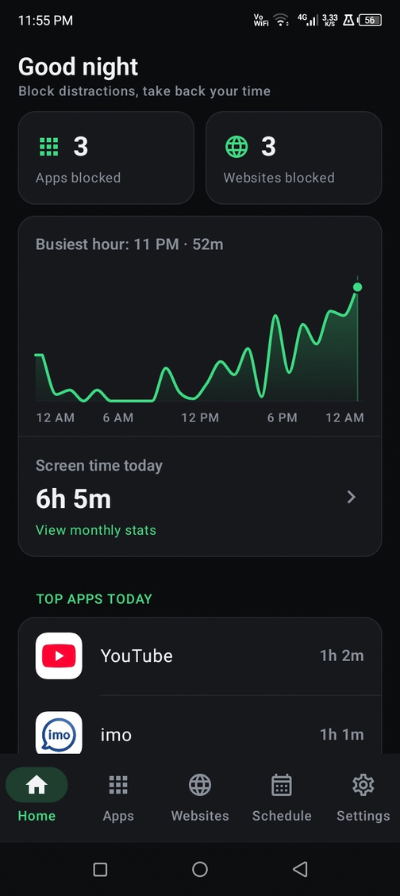
Blocked counts
Two cards — Apps blocked and Websites blocked. Tap either to jump to that tab.
Screen time today
A chart of today's screen time hour by hour, from midnight up to the current hour, in the phone's 12- or 24-hour style. The line above it names the busiest hour — Busiest hour: 2 PM · 34m. Tap or drag across the chart to read any other hour instead.
Below the chart is the day's total. Tap it to open Monthly Stats.
Top apps today
The five apps you have used most today, with the time spent in each. Only apps used for a minute or more are listed, so early in the day it reads Nothing yet today.
Screen time needs Usage access. Without it the chart is hidden and Usage access is off appears under Top apps today; tap Allow to grant it. Blocking does not depend on it.
The numbers refresh whenever Home comes back to the front. Screen time keeps growing while you use the phone, so it is re-read each time rather than held on screen.
Monthly Stats
A month of screen time at a glance, with a bar for every day and twelve months of history.
Tap the day's total on Home to open Monthly stats. It opens on the current month; the arrows in the top bar step back through the last 12 months.
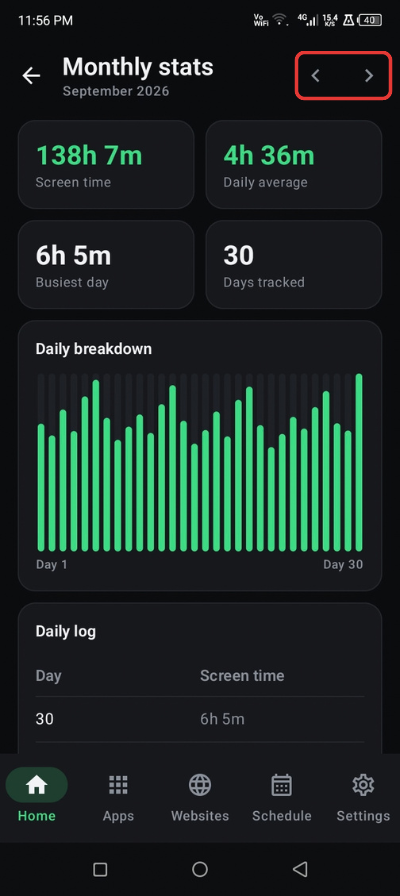
Monthly stats for a full month: the summary at the top, the daily breakdown chart, and the daily log below it. The arrows (boxed) step between months.
Summary
- Screen time — the month's total.
- Daily average — across the days with screen time.
- Busiest day — the most screen time in a single day.
- Days tracked — how many days have screen time saved.
A dash stands in for any figure with nothing recorded behind it.
Daily breakdown
A bar for every day of the month; days still to come stay empty. Touch or drag across the bars to read a day — 14 Oct · 3h 20m appears beside the title while the other bars fade back.
Daily log
Every day with screen time, newest first, as a table of day and time.
Screen time is saved day by day, even when you never open the app. Android keeps per-day usage for only about ten days, so BlockGate copies each day into its own database while Android still has it — a few times a day in the background, and whenever Home or Monthly stats opens.
Older months start empty on a fresh install. The history begins with whatever Android still holds — roughly the ten days before installing — and fills in from there.
It needs Usage access. Without it a banner at the top asks you to allow it; days already saved still show.
Parent PIN
A 4-digit PIN that replaces the typed code, its one-time recovery code, and the pause after wrong tries.
The parent PIN is for a phone a child uses. Once it is set, every action that asked for the typed code asks for the PIN instead — so a child cannot unblock anything, turn on an unblock window, or turn off uninstall protection.
Setting the PIN
Turn on Parent PIN under Settings → Parent controls, then:
- Choose a 4-digit PIN — digits 0–9, shown as dots. It is taken as soon as the fourth digit is in; there is no button.
- Enter the same PIN again — if the two differ, you choose again.
- Save your recovery code — see below.
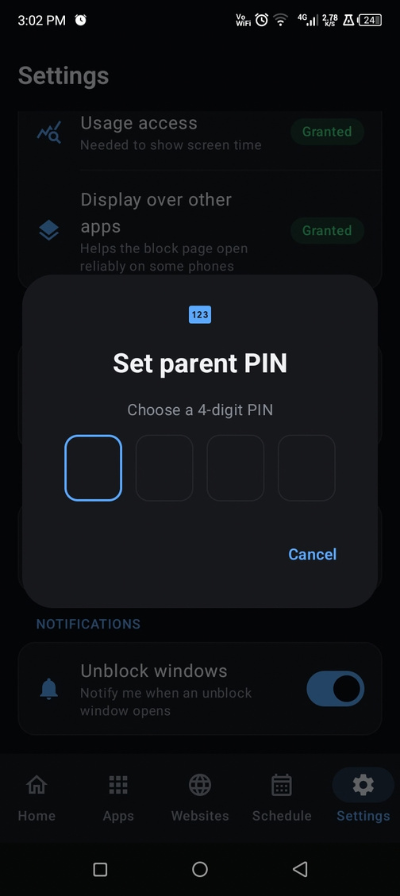
The recovery code
Setting the PIN shows a recovery code: 12 characters in groups of four, such as K7Q2-9XMP-4TDA. It is the only way to reset a forgotten PIN, and it is shown once.
Use Copy or Share to keep it — send it to your own phone, or write it down — then tick I’ve saved this code to enable Done. The dialog cannot be closed any other way until then.
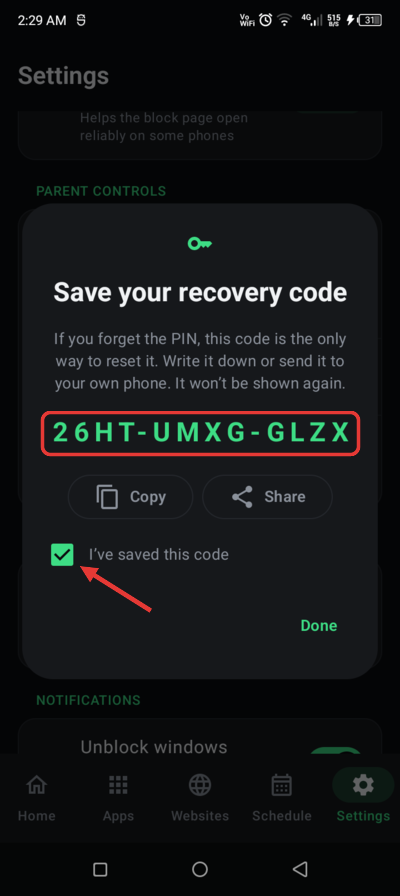
Done right: the recovery code (boxed) is on screen once. Copy or Share it, tick I’ve saved this code (arrow), then Done.
Neither the PIN nor the recovery code is stored as typed. Both are kept only as salted hashes, so not even the app can show them again. Lost the code while you still know the PIN? New recovery code issues a fresh one, and the old one stops working.
Changing or turning it off
- Change PIN — asks for the current PIN, then a new one. The recovery code stays the same.
- New recovery code — asks for the PIN, then shows a new code once.
- Turn it off — switch Parent PIN off and enter the PIN. The typed code takes over again.
Forgot PIN?
Every PIN prompt has a Forgot PIN? button. Enter the recovery code, choose a new PIN, and save the new recovery code that follows. If you were in the middle of something — unblocking an app, say — the dialog then asks for the new PIN to finish it.
Wrong tries
Five wrong tries are free. After that, entry pauses — 30 seconds, then 1, 5 and 15 minutes, each further wrong try moving one step along — with a countdown in the dialog.
Wrong PINs and wrong recovery codes share one counter, so the recovery code cannot be used to guess around a pause. Changing the phone's clock does not shorten a pause, and restarting the phone during one starts it again.
The PIN alone does not stop uninstalling. Without uninstall protection, BlockGate can still be uninstalled or its service turned off in system settings, and the PIN row says so. On a child's phone, turn on uninstall protection as well.
Lost both the PIN and the recovery code? Clearing BlockGate's storage in the phone's Settings removes the PIN — and every block with it. If uninstall protection is on, first restart the phone in safe mode and turn off Uninstall protection under Device admin apps.
Uninstall Protection
Stopping the app being uninstalled, or its service turned off, on impulse.
Blocking only holds while BlockGate is installed and its service is on. Uninstall protection, under Settings → Protection, stops either being undone on impulse.
Turning it on
Three steps, all from inside the app:
1. Switch it on
Open Settings → Protection and switch on Uninstall protection.
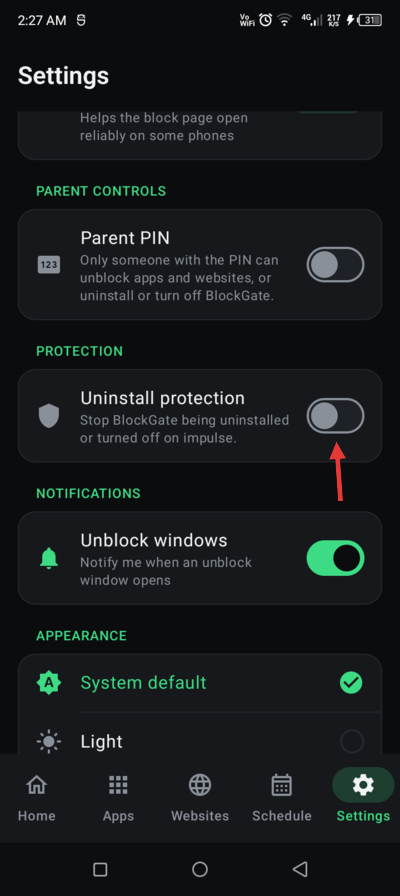
Settings → Protection, before switching it on. Tap the switch (arrow).
2. Activate the device admin app
Android opens its own screen, Activate device admin app?, listing what BlockGate may do. Tap Activate this device admin app — on some phones you need to scroll down to find it. Tapping Cancel leaves protection off.
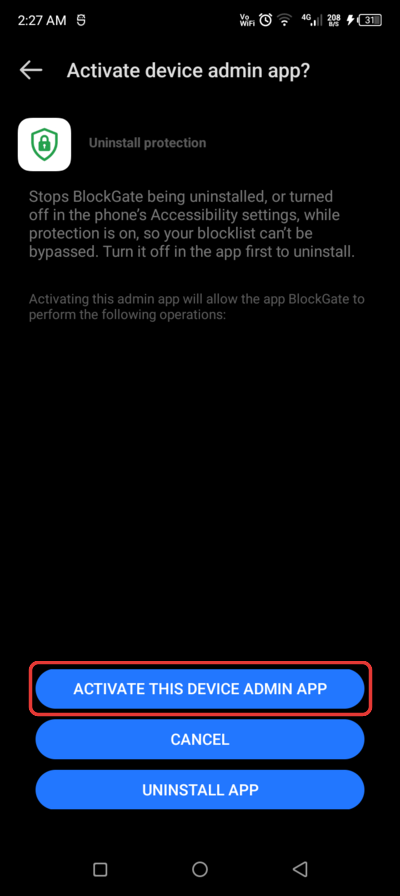
Android’s own screen: tap the boxed button. Its wording and colours differ between phone makers.
3. Check that it is on
You are back in Settings, a message confirms Uninstall protection is on, and the row now reads On. BlockGate can’t be uninstalled or turned off in Accessibility until this is off.
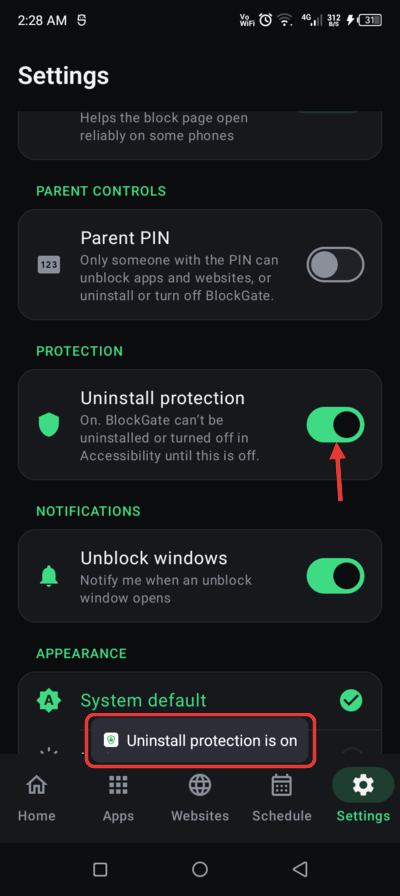
Done right: the switch is on (arrow), the row says what is now protected, and the message (boxed) confirms it.
To check it, long-press BlockGate on the home screen and choose Uninstall: the Uninstall blocked page appears instead of the uninstall dialog.
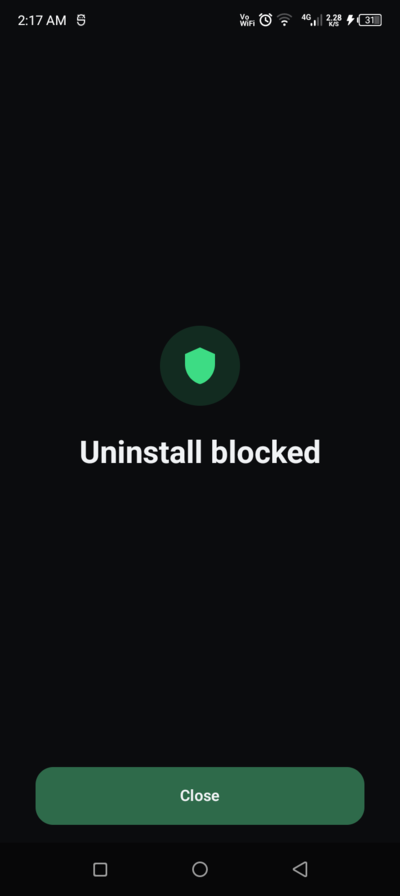
The block page that covers the uninstall dialog while protection is on.
The accessibility service must be on first. It is what covers the protected screens, so with it off the switch shows the disclosure instead. If the service is turned off later, the row turns red and reads Paused.
What it covers
While it is on, the block page — Uninstall blocked or Accessibility settings blocked — opens over:
- The uninstall dialog for BlockGate, from the home screen.
- BlockGate's App info page, which has the Uninstall button.
- The screen for turning off BlockGate as a device admin app.
- BlockGate's own page in Accessibility settings, where its service is switched off.
The rest of Settings stays open, including the Accessibility list itself — only BlockGate's own pages are covered.
Turning it off
Switch it off and type the code — or the parent PIN, if one is set. Protection is off straight away, and BlockGate can then be uninstalled normally.
To uninstall BlockGate, turn protection off in the app first. Uninstalling from the home screen or App info while it is on only brings up the block page.
It stops impulses, not a determined owner. Restarting the phone in safe mode lets device admin apps be turned off. That is also the way out if both the parent PIN and its recovery code are lost.
Settings
Permissions, parent controls, protection, notifications, appearance, help and about.
The Settings tab holds seven groups.
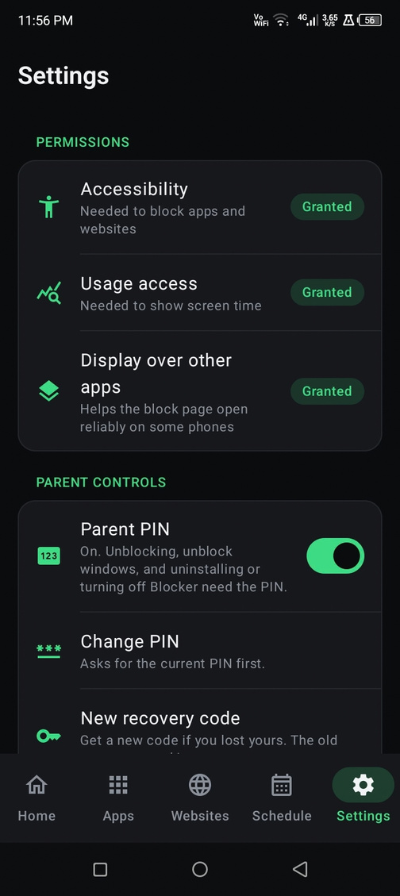
Permissions
Accessibility, Usage access and Display over other apps, each with a Granted or Grant pill. A missing one shows its icon in red; tap the row to open the system page that grants it. The list is re-checked every time you come back.
Parent controls
The parent PIN switch, and once it is on, Change PIN and New recovery code. See Parent PIN.
Protection
The uninstall protection switch. See Uninstall Protection.
Notifications
Unblock windows — Notify me when an unblock window opens. On by default. Turning it off silences the notice only; windows still open and close on time.
Appearance
Choose System default, Light or Dark, and an Accent color — Blue, Green, Purple, Orange or Pink, with Blue the default. The block page and the window notification follow your choice.
Help
- Supported browsers — the browsers blocked websites are caught in.
- Battery optimization — reads Unrestricted or Restricted; tap it to change.
- Can’t turn on the service? — Android 13+ only: the steps for the "Restricted setting" message.
Some phones stop the service to save battery. itel, Tecno, Infinix, Xiaomi, Oppo, Vivo and others kill background services after a while. If blocking stops working, set BlockGate's battery usage to Unrestricted or No restrictions, and lock it in the recent-apps screen.
About
The app name with its tagline and version. A Privacy Policy row appears above it when one has been configured, and opens it in the browser.
Troubleshooting
The usual problems and their fixes — most are also explained inside the app.
Most of these are also explained inside the app, under Settings → Help.
| Problem | Fix |
|---|---|
| Blocked apps open normally | Check Settings → Permissions: Accessibility must read Granted. |
| Nothing blocks after installing an update | Turn the accessibility service off and on in system settings. Android reloads the service only then. |
| The service switched itself off | Android turns it off when the app is force-stopped, from App info or by some cleaner apps. Turn it back on. |
| Blocking stops after a while | The phone is killing background services. Set battery usage to Unrestricted and lock the app in the recent-apps screen. |
| "Restricted setting" when turning on the service | Settings → Apps → BlockGate → ⋮ → Allow restricted settings, then turn it on again. Play Store installs are not affected. |
| A website isn't blocked | It is caught only in supported browsers. Block any other browser on the Apps tab. |
| The block page opens on BlockGate's App info page | That is uninstall protection: App info has the Uninstall button. Switch protection off in the app first. |
| The block page opens on BlockGate's page in Accessibility settings | Uninstall protection again — it stops the service being turned off. Switch protection off in the app first. |
| Screen time shows 0 | Grant Usage access in Settings → Permissions. |
| Older months in Monthly stats are empty | Android keeps per-day usage for about ten days, so the history starts there and fills in as it goes. |
| No notification when a window opens | Allow notifications for the app, and check Settings → Notifications. The window works either way. |
| Can't uninstall the app | Uninstall protection is on. Switch it off in Settings → Protection, then uninstall. |
| Forgot the parent PIN | Tap Forgot PIN? on any PIN prompt and enter the recovery code. |
| "Too many wrong tries" | Wait for the countdown — 30 s, then 1, 5 and 15 min. Changing the clock does not skip it. |
Changelog
What changed in each release, and whether it affects a customised build.
Every release of BlockGate is listed here, newest first. Each entry ends with Affects customised builds — what to check if you have already rebranded or changed the source — so you can decide whether, and how, to update.
| Tag | Meaning |
|---|---|
| [NEW] | A feature that was not there before |
| [IMPROVED] | Existing behaviour made better, or a library or toolchain upgraded |
| [FIXED] | A bug fixed |
| [CHANGED] | Behaviour that now works differently — read these before updating |
v1.0.0 — October 2026
Initial release.
- [NEW] App blocking from the Apps tab, with a full-screen block page and a 3-second Close button.
- [NEW] Website blocking, including subdomains, in Chrome, Samsung Internet, Firefox, Edge, Brave, Opera, DuckDuckGo and other supported browsers.
- [NEW] Unblock windows on the Schedule tab — weekly or one day, including windows past midnight — with an optional notification when one opens.
- [NEW] Typed 12-character codes before anything is unblocked.
- [NEW] Parent PIN with a one-time recovery code and increasing pauses after wrong tries.
- [NEW] Uninstall protection through device admin and the accessibility service.
- [NEW] Screen time today on Home, hour by hour, and monthly stats kept for 12 months.
- [NEW] Light and dark themes with five accent colours, and layouts for small phones through tablets.
Affects customised builds: not applicable — first release. Database version 1.
Updating a customised build
When a new version comes out, the entry for it says which areas changed. To bring those changes into your own app:
- Keep your copy under version control. With Git, commit your rebranded project, unzip the new release beside it, and compare the two folders — Android Studio's Compare Directories (select both in the Project panel, then Ctrl+D) shows every changed file side by side.
- Keep your branding.
AppConfig.kt,app_nameinstrings.xml, the launcher icons inres/mipmap-*, your package name and your signing setup are yours — do not copy them over from the new release. - Check the database line. If an entry says the database version went up, its migration is included in the release; copy
data/db/anddi/DatabaseModule.kttogether, so the migration comes with the new version number. - Check the accessibility line. If
res/xml/accessibility_service_config.xmlchanged, keep your ownandroid:settingsActivityvalue, and tell users in your release notes to turn the service off and on once. - Raise
versionCodebefore uploading the update to Google Play.
License
What your CodeCanyon licence lets you do with the source code, in plain language.
BlockGate is sold on CodeCanyon under the standard Envato Market licences. This page explains them in plain language for this app. If anything here differs from Envato's own wording, Envato's licence terms are what count.
One purchase, one app
Each licence covers one end product — one app, published under one package name, by you or for one client. You can update that app as often as you like, for as long as you like.
Publishing two or more apps from the source — even with different names, colours or features — needs one licence for each app. A rebranded copy for a second client, or a second version of the app under another package name on Google Play, counts as another app.
Regular or Extended?
| Your app | Licence needed |
|---|---|
| Free to download, and free to use | Regular |
| Free to download, with ads | Regular |
| Paid to download | Extended |
| Free to download, but with in-app purchases or a subscription that unlocks features | Extended |
The rule behind the table: if users have to pay to get the app, or to use any part of it, you need the Extended licence.
What you can do
- Change anything in the source — the name, icon, colours, text, features and code.
- Publish the app on Google Play or any other store, under your own name and package id.
- Build the app for a client and charge for your work. You are buying the licence on your client's behalf, and the finished app is theirs.
- Keep using the source after your support period ends. The licence does not expire.
What you cannot do
- Share or resell the source code — as-is, modified, as a template, or as part of another source-code product, free or paid. This applies under both licences.
- Publish more apps than you have licences for.
- Pass the licence on to someone else, except to the client you built the app for.
Attribution
No attribution is required. You do not need to mention BlockGate, ShahinLabs or CodeCanyon anywhere in your app or its store listing. The rebranding steps remove every visible mention of the BlockGate name.
Third-party libraries
The libraries the app is built on — Jetpack Compose, Material 3 and its icons, Hilt, Room, Navigation, Lifecycle and Kotlin Coroutines — are open source under the Apache License 2.0, which allows commercial use, including in paid apps. They are listed under Packages in Modifying the Source. You do not need to buy anything else to publish the app.
Not sure which licence fits your plan? See Envato's licensing FAQ, or contact us through the Support tab on the item page before you publish.